Local Upscaler · Updated July 20, 2026
Local Upscale is a local upscaler app for iPhone and iPad.
When people search for Local Upscale, local upscale, or a local upscaler that works without a web upload, they usually want the same thing: clearer images without handing the photo to a cloud service. Local Upscale is built around that job on iPhone and iPad.
What "local" means here
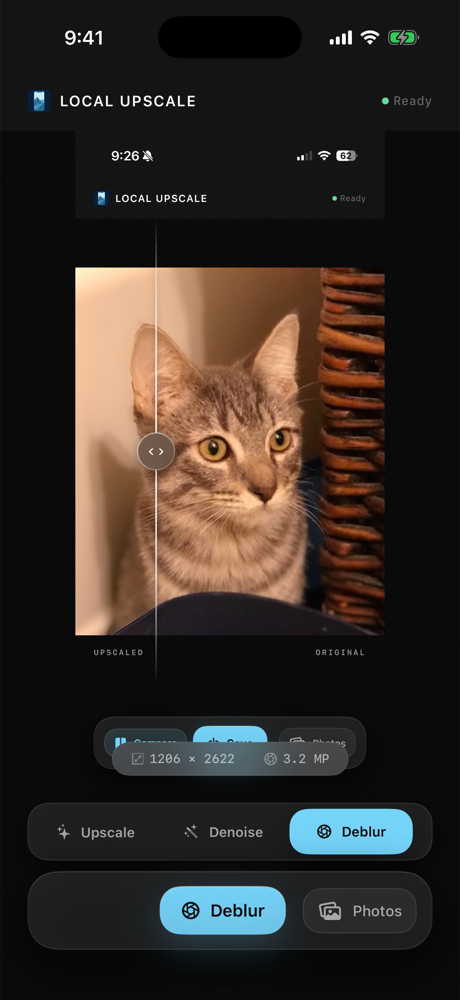
Local Upscale runs photo enhancement on your iPhone or iPad using bundled models. The selected image does not need to go through an app server, account system, or web upload form for processing. You pick the photo, choose the enhancement, compare the result, and save a new copy only when it helps.
When a local upscaler is the right fit
Use a local upscaler when the photo is personal, when you do not want to create an account for one enhancement, or when a subscription editor is more than the job requires. The app is designed for focused improvements: make a small image larger, reduce noise, sharpen a soft shot, or restore supported portrait detail.
It is still a photo enhancer, not a magic reconstruction tool. Very tiny, heavily compressed, or severely blurred images may only improve so much. The useful part is that you can compare the result before saving a new copy.
The best fit is a photo where a clear local workflow matters: an older family scan, a soft iPhone image, a small reference image, or a portrait you would rather not upload to a browser tool. You choose the image, run the enhancement on device, and decide whether the result is worth saving.
How the local upscale workflow works
Choose a photo from your library, pick the mode that matches the problem, let the app run the enhancement on device, and compare the before and after view. If the result is useful, save a new copy back to Photos. If it is not, you can leave the original alone.
Which mode to try first
Use 4x upscale first when the problem is image size or low resolution. Try denoise first when the photo is grainy from low light or an older scan. Use deblur when the image is soft but still has visible edges to recover. Portrait restore is best reserved for supported face photos where the subject is the reason you care about the image.
For old family photos, start with the least aggressive mode that matches the visible problem, then compare before saving. A faded or damaged print may need a dedicated restoration workflow elsewhere, but Local Upscale can still help when the main issue is small size, grain, softness, or portrait detail.
What to expect from a 4x upscale
A 4x upscale makes the image four times wider and four times taller, so the result contains sixteen times as many pixels. That can make a small source more useful for cropping, sharing, or printing, but it also creates a much larger image to process and save.
Start with the best original you have rather than a compressed screenshot or forwarded copy. Keep enough free storage for a new result, and try a smaller copy first if an extremely large source strains the device. Local Upscale leaves the original in Photos alone, so you can compare before deciding whether to keep the enhanced copy.
What you can do with it
- 4x upscale: enlarge small or low-resolution images.
- Denoise: reduce grain in low-light or older photos.
- Deblur: sharpen soft images where edge detail needs help.
- Portrait restore: improve face detail in supported portraits.
Why use a local app instead of a website?
A website can be convenient for public or throwaway images. A local app is a better fit for private photos, family pictures, client reference images, documents, or anything you do not want sitting in another upload queue.
What to check before choosing a local upscaler
Start with the workflow, not the buzzword. A useful local upscaler should let you pick a photo from your library, run the enhancement on device, compare before and after, and save a new copy only if it helps. It should also be clear about pricing and whether the image leaves your phone or iPad during processing.
Local Upscale vs a generic web upscaler
Local Upscale is for the cases where the photo itself is the sensitive part of the workflow. You choose an image from Photos, run the enhancement on the device, compare the result, and save a new copy only when it is useful. There is no account step, ad-supported upload page, or remote processing queue in between.
Related private enhancement guides
For a broader privacy-first workflow, read the offline AI photo upscaler guide. If you mainly need to enlarge a file, see how to upscale an image offline on iPhone. If you are comparing all private enhancement options, start from the Local Upscale guides hub. For grainy or soft photos, compare the denoise and deblur workflows.
Local Upscale is a one-time App Store purchase. There is no account, no ad model, no upload queue, and no subscription to cancel later.
Open Local Upscale on the App Store